Shelfprint guide
Track once. Share anywhere.
Keep your reading in your own spreadsheet. Explore it with charts and cover galleries. Then turn it into images to share with the friends and communities you already have: a card for one book, a monthly wrap-up, or your year in books. No account required, and no Shelfprint server: your file stays in your browser.
Watch the introduction on YouTube (1:34).
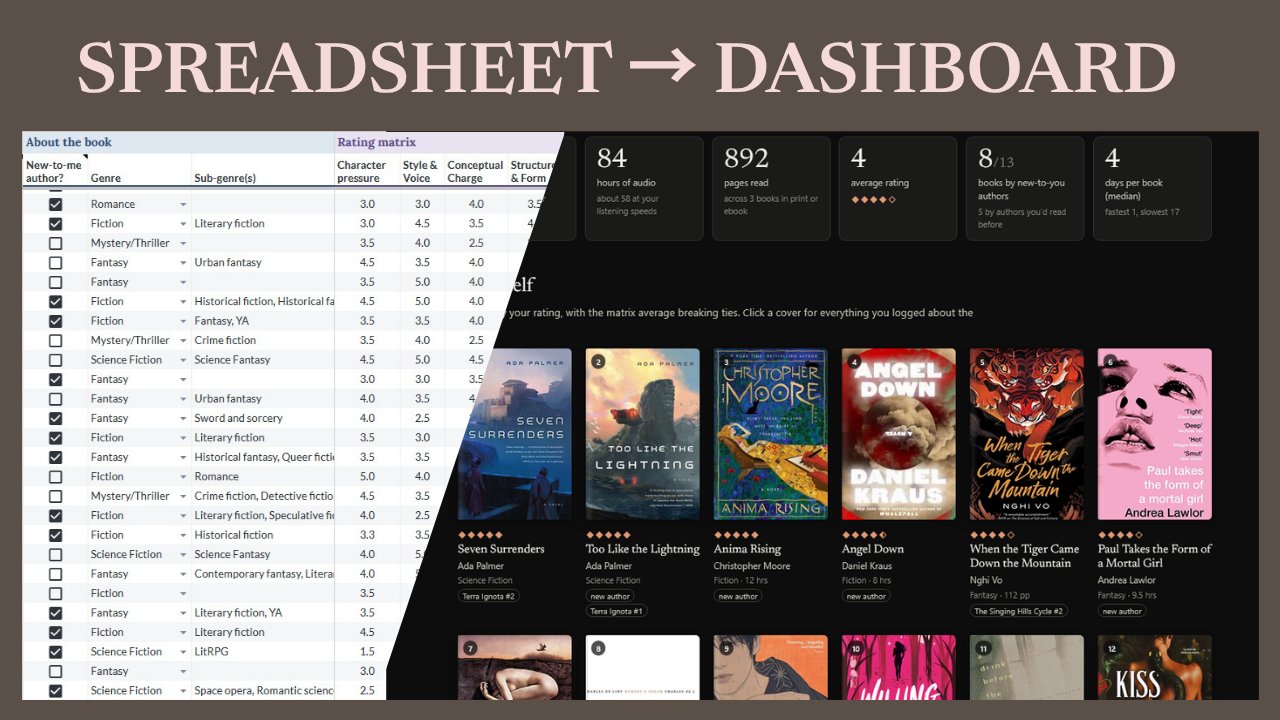
I spent a year closely cataloging my reading in a spreadsheet, adding new fields and finding new questions I wanted the data to answer. Eventually, the visualizations I wanted exceeded what I could comfortably build in Excel, so I began experimenting with HTML.
I wanted to keep the spreadsheet experience for entering and managing books, without depending on an external reading platform. I also wanted to share my reading with friends and communities, including people who don't use reading apps themselves. Shelfprint grew out of those experiments.
Two pieces work together to make your own shelfprint:
- Shelfprint Tracker, a spreadsheet template for Google Sheets, Excel, or LibreOffice Calc, where you log your books.
- The Shelfprint page, a single web page that reads an export of that spreadsheet and turns it into monthly wrap-ups, a full-year dashboard, image cards for single books, share images, and My Year in Books, a set of year-end images you can download, copy, save, and post.
Plenty of sites will make a year-end recap from your reading. They decide what goes in it, using rules you can't see, from data they keep. Shelfprint works the other way around. Your log stays in your own spreadsheet. The page reads it in your browser and keeps it there. Every image in My Year in Books comes with a note on precisely what it counted and how, and you choose which images to include, which books to feature, and what order they go in.
No server, and no Goodreads, Kindle, or Amazon. Use whichever spreadsheet program you like.
Make something of your reading.
Contents
- Quick start
- What's included
- The spreadsheet
- The page
- My Year in Books
- Privacy and outside connections
- What's saved in your browser
- Hosting your own copy
- Versions and what stays stable
- Troubleshooting
- Known limits
- License
- Credits
Quick start
- Make a copy of the template. Open the Shelfprint Tracker template in Google Sheets and choose Make a copy. It goes into your own Google Drive.
- Log your books on the Reading Log tab. Only Title and End date are required. No End date? Use Month read plus Year read. Row 3 is an example; type over it or clear it.
- Download the Reading Log as a CSV file. Open the Reading Log tab, then File → Download → Comma-separated values (.csv).
- Open the Shelfprint page at shelfprint.org/app, and drop the CSV onto it or click Choose a file….
- Bookmark the page. It keeps your log in this browser, so your books are there the next time you open it. To update, download a fresh CSV and use Load new export… at the top of the page.
Just want to see what it does? On the first screen, click try it with sample books. The samples are public-domain classics with an invented reader's ratings and notes. Nothing is saved.
Other ways to use Shelfprint:
- Skip the download each time. Publish the Reading Log tab as a CSV link, and the page loads your latest data whenever it opens. Anyone with that link can read the whole tab, including columns such as Recommended by. See Loading your log.
- Excel or LibreOffice Calc instead of Google Sheets: download
Shelfprint_Tracker.xlsxorShelfprint_Tracker.odsfrom this repository. See Using Excel instead of Google Sheets and Using LibreOffice Calc. - Open the page from your own computer. Download
shelfprint.htmland open it in your browser. It works the same way, though Copy image and phone sharing work best from the website. - Host your own copy, with your own starting settings. See Hosting your own copy.
What's included
| File | What it is |
|---|---|
shelfprint.html |
The whole Shelfprint page in one file: no install, no build step. Open it locally, or host it anywhere that serves static files. |
Shelfprint_Tracker.xlsx |
The Shelfprint Tracker template for Excel (Microsoft 365 or Excel 2019 and later). |
Shelfprint_Tracker.ods |
The OpenDocument version of the tracker for LibreOffice Calc. Major spreadsheet functions and CSV import into Shelfprint have been tested. |
| Google Sheets template | The same template for Google Sheets. The link makes a copy in your own Google Drive. |
index.html |
The front page at shelfprint.org: what Shelfprint is, with links to the page and the templates. |
app/index.html |
Sends visitors from shelfprint.org/app to shelfprint.html. |
site/ |
Images and the typeface file for the front page. |
guide/index.html |
This guide as a web page, at shelfprint.org/guide. It's built from this file by tests/guide.js; don't edit it by hand. |
sitemap.xml, robots.txt |
Tell search engines which pages shelfprint.org has. |
CNAME |
Tells GitHub Pages that this copy is served at shelfprint.org. |
README.md |
This file. |
CHANGELOG.md |
What changed in each version. |
LICENSE |
The MIT License. |
tests/ |
Checks for people changing the page's code. Not needed to use Shelfprint. See tests/README.md. |
The spreadsheet
The minimum you need
Every finished or DNF book needs a Title and one of these:
- an End date, or
- a Month read plus a four-digit Year read.
That's all. Every other column is optional. Leave a column blank, and the page skips the sections that need it. A reader who tracks only titles and dates still gets a complete, shorter wrap-up. Tracking more (ratings, formats, genres, and tags) adds more charts and images.
How books are placed in a year and a month
The spreadsheet and the page use the same rules, so the counts in your sheet and on the page agree.
Year, for books marked Finished or DNF:
- The year of the End date.
- One exception: if Month read is December and the End date is in early January, the book stays in December's year. A book you finished just after New Year can still count toward the year you mostly read it in.
- Otherwise, Year read, if it's a whole four-digit year.
- Otherwise, the book has no year. It isn't counted in any year, and both the Checks tab and the page tell you about it. Neither ever guesses a year.
Month: Month read when it's filled in, otherwise the month of the End date. A Month read one month before the End date is treated as normal (a book that straddles two months). Larger differences are flagged as advisories, and Month read still wins.
Reading and Paused books don't belong to a finishing year. The page shows them under Currently reading, which covers all years.
If both an End date and a Year read are present and they disagree, the End date wins, and the disagreement is flagged.
Tabs
| Tab | What it's for |
|---|---|
| Reading Log | One row per book you read, are reading, or set aside. The page reads this tab. |
| TBR | Books you want to read: where you heard about them, library holds, and wait times. The strip at the top counts holds and how long the oldest book has waited. When you start a book, tick Started? and keep the row. The Reading Log looks up where you heard about it, if you have entered that data. |
| Series | One row per series. Read this year, Last read #, Next up #, Left to read, and Next access fill themselves in from the Reading Log and TBR. |
| Fields | A guide to every column: what to enter, an example, and what it's used for in Shelfprint. |
| Lists | The choices behind every dropdown (genres, formats, statuses, sources, and so on). Add your own at the bottom of any list. |
| Settings | Reading year, which only sets the year counted in the Series tab's Read this year column. It doesn't decide which year a book belongs to. |
| Checks | Data checks that update as you type. See The Checks tab. |
| Found covers | Optional. Covers the page looked up, pasted back into your sheet so they stay with your data. See Covers. |
_ChecksData (hidden) |
Helper calculations for the Checks, Series, and Reading Log tabs. Don't edit or delete it. |
Gray (calculated) columns fill themselves in. Don't type in them.
To remove a book from the Reading Log or TBR, clear its row or delete the row. Either is fine.
Reading Log columns
The Fields tab describes every column in detail. In order:
| Group | Columns |
|---|---|
| Core data | Title, Author, Status |
| When you read it | Start date, End date, Month read, Year read |
| About the book | New-to-me author?, Genre, Sub-genre(s) |
| Rating matrix | Character pressure, Style & Voice, Conceptual Charge, Structure & Form, Affective Afterlife, Matrix Average (calculated) |
| Simple rating | Rating |
| Additional data | Series, Series #, Publication year, Audience, Form, Format, Page count, Word count, Audio length, Listening speed |
| Reading data | Days to read, Percent at DNF?, Reread?, Source, How I found it, Recommended by, Publisher, Imprint, Original title, Original language, Language read, Author gender, Bipoc author?, Tags, Narrative perspective, Freeform thoughts, Translator, Narrator, Illustrator / artist |
| Identifiers | ISBN, Cover URL, Found cover (calculated), Record ID |
A few columns worth knowing about:
- Author: "Last, First" or "First Last" both work. Separate co-authors with a semicolon.
- Rating and matrix scores: any number from 0.5 to 5, in whatever steps you like (3.75 is fine).
- Audio length: hours:minutes, such as
10:30. Listening speed: a decimal such as1.5; blank means 1×. The page reports both total audio length and actual listening time. - Form: how the book is told: Prose, Verse, Short stories, Graphic novel, Manga, Manhwa, Manhua, Webtoon, or Comics. Add your own on the Lists tab. See Manga and comics for what the page does with it. Audience: who the book was published for, such as Adult, Young adult, Shonen, or Josei.
- Tags and Sub-genre(s): comma-separated, all in one cell. Reuse the same wording each time ("Grief", not "Grieving") so they count together. The Checks tab catches tags that differ only by capital letters or a final s.
- How I found it / Recommended by: fill themselves in from the TBR tab when the title matches there. Type over them for books that weren't on your TBR.
- Cover URL: a link to a cover image you chose. It always wins over looked-up covers.
- Record ID: optional. A code for the row that never changes, such as
2026-001. Use it when you log two editions of the same title, or a reread, and want each row to keep its own cover. Don't reuse an ID.
The page finds columns by their header names, not their positions. You can reorder columns, and other spreadsheets work too, as long as the headers match. A few alternative headers are also recognized, such as "Date finished" for End date or "Pages" for Page count.
The rating matrix
The five matrix categories are a suggestion. You can rename them, and you can add or remove categories, as long as all the score columns sit directly to the left of Matrix Average:
- The page uses up to eight matrix columns and shows whatever names you give them.
- Matrix Average is calculated only when every score in the row is filled in. One blank score means no average, never a misleading partial one.
- Scores outside 0.5–5 are left out, and the page reports them.
The Checks tab
The Checks tab lists problems the page would trip over, with a count, a severity, the rows involved, and how to fix each one.
- Errors stop a book from appearing correctly in Shelfprint:
- books that can't be placed in a month
- a Month read with no year
- an End date and Year read that disagree
- a Status not on the list
- Record IDs used more than once
- Advisories are worth a look but won't break anything:
- a Month read that doesn't match the End date
- finished books missing a rating
- a partly filled matrix
- titles logged twice without Reread? ticked
- repeated titles without Record IDs
- series names missing from the Series tab
- tag and author spelling variants
- TBR books not ticked Started?
- values that aren't on their dropdown lists
A count of 0 means the check passed. Check failed means a helper formula broke, and the check never shows a reassuring 0 when it couldn't run. In a copy of the template from before version 1.2.1, deleting a row from the Reading Log or TBR does this. Otherwise, the hidden _ChecksData tab was probably edited. See Troubleshooting for the fix.
Capacity
The Reading Log supports rows 3 to 1000, which is about 998 books. The TBR supports rows 4 to 1001. Dropdowns, validation, and every check cover those full ranges.
You can keep several years in one sheet. At 100–150 books a year, that's six years or more. Each book's year comes from its own dates, so years never mix. In testing, a sheet with all 998 rows filled recalculated in well under a second after a normal edit. Rows beyond 1000 get no dropdowns or checks.
Using Excel instead of Google Sheets
The Excel template has the same tabs, formulas, dropdowns, and checks as the Google Sheets version.
- Requires Microsoft 365 or Excel 2019 or later. The checks use TEXTJOIN, MAXIFS, and MINIFS, which older versions show as
#NAME?. - To export: select the Reading Log tab, then File → Save a Copy (or Save As) → CSV UTF-8 (Comma delimited). Excel saves only the active tab, so make sure Reading Log is the one selected.
- LibreOffice Calc also opens the template and calculates it correctly.
Using LibreOffice Calc
The repository also includes Shelfprint_Tracker.ods, an OpenDocument Spreadsheet version of the tracker for LibreOffice Calc. It does not require Excel or a Google account.
The major spreadsheet functions have been checked in LibreOffice Calc, and a CSV exported from the tracker has been successfully imported into the Shelfprint page. This was a practical compatibility check, not an exhaustive test of every formula, validation rule, or edge case.
To export: select the Reading Log tab, choose File → Save As, select Text CSV (.csv) as the file type, and confirm that you're exporting only the current sheet. Keep UTF-8 and comma-separated fields when prompted. Load the resulting CSV into shelfprint.html.
The page
Loading your log
Drop a CSV onto the page, or click Choose a file…. The file is read in your browser and kept in that browser, so the page shows the same data next time you open it. To update, export again, and use Load new export… at the top of the page. This is the default, and the most private way: your log goes only where you put it.
Optional: load straight from a published sheet. In Google Sheets you can publish the Reading Log tab as a CSV (File → Share → Publish to web, then choose the Reading Log tab and CSV) and paste that link into the page's Settings. The page then loads your latest data each time it opens. Publishing makes the whole tab readable by anyone with the link, including personal columns such as Source, How I found it, and Recommended by, so share the link with care. If the link can't be reached, the page shows the copy saved in your browser with a Not up to date notice, rather than presenting old data as current.
Year and month views
The bar at the top switches between the year and each month, with the number of books finished in each. Month pages also have links back to the year and to the months on either side.
- Year view: headline numbers (books, hours of audio, pages, average rating, new-to-you authors, busiest month, and pace), then:
- books finished each month
- your top-rated books
- genre, format, and rating breakdowns
- form and audience breakdowns, when your books have more than one of either
- who you read
- series progress
- books you set aside (DNF)
- your currently reading list
- if you use the matrix: matrix charts, including Gut vs. rubric
- Month view: the month's shelf, ranked by your rating, with the same kinds of breakdowns for that month.
- Book details: click any cover to see everything you logged about that book, choose its cover, and pick it for My Year in Books. With a book open, Left and Right move to the previous or next book in the same list. In the year's month-by-month strips, Up and Down move to the first book of the month before or after. In the table, the arrow keys move through the rows.
- Find a book: in the year view, type part of a title or author in Find a book in [year] to open that book's details. Finding a book doesn't filter the page or change any numbers.
- Filters: click a bar, a tag, an author, and so on to show only matching books. Clear filter, or your browser's back button, undoes it. In a month, Show all of [year] keeps the filter and opens the year view.
- Table: every view ends with a collapsible table of its books.
If your file covers more than one year, a year picker appears next to the year.
Manga and comics
Books whose Form is Manga, Manhwa, Manhua, Webtoon, Graphic novel, Graphic memoir, Graphic nonfiction, or Comics count like every other book: in books finished, pages read, ratings, and everything else. When a month or year includes some, the page adds detail about them, and takes nothing out of the totals:
- A tile of their own in the headline numbers, such as "12 manga and comics," with a count for each form. The tile uses the name that fits what you read: "manga" when that's all there is, "graphic novels" likewise, and "manga and comics" for a mix.
- Pages read stays the full total, and its note adds how many of those pages were manga and comics.
- Days per book stays the median for all books, and its note adds the median for manga and comics beside the median for other books.
- Series made up of manga or comics are counted in volumes ("vols. 1–5"). For any series, a dash joins only numbers that follow one another, so volumes 1, 3, and 5 read "vols. 1, 3, 5" and never suggest you read the ones between.
In images, they count in the same way, and get a few additions of their own:
- Share images offer an Include manga and comics checkbox (named for what's there, such as "Include 2 manga") when some of the books are. It starts ticked. Untick it to leave them off that image: its stats line and other counts then cover only the books shown. Your page and your sheet don't change, and the checkbox is ticked again the next time you open the dialog. A month of nothing but manga and comics has no checkbox, since leaving them off would leave nothing.
- Genre shelves in My Year in Books can include Form values, such as Manga, alongside genres and sub-genres. They're listed in a group of their own, headed Form. Nothing is added for you: a manga shelf exists only if you make one.
- Book cards can show Art by under the author, from the Illustrator / artist column, when it names someone other than the author. Names match however they're written, so "Sato, Ren" and "Ren Sato" are one person. It's one of the Include choices, on to start with and remembered like the others.
A month or year without any looks exactly as it did before, and so does a log that doesn't use the Form column. A month of nothing but one form (all manga, say) doesn't get the extra tile. Instead, the books finished tile says "all manga," and the pages note says "all in manga."
Capital letters and a final s don't matter ("graphic novels" and "mangas" both work), and "Comic book" and "Webcomic" are recognized too. Each form keeps its own name: a graphic memoir is counted as a graphic memoir, not as a graphic novel. A book with no Form, or a Form the page doesn't know, is never assumed to be prose or comics. It shows under its own name, or as "not recorded," in the Form chart. If you copied the template before version 1.1, add Webtoon and Manhua to the Form list on your Lists tab if you want them in the dropdown.
Verse and short stories aren't part of this. They show in the Form chart like any other form.
"Check your sheet"
After each load, the page lists anything it couldn't settle, with a Show which list:
- books with no year
- Year read values that aren't a four-digit year
- End dates that disagree with Year read
- Month read values that don't match the End date
- duplicate Record IDs
- matrix scores outside 0.5–5
Nothing drops out of the counts without a mention.
Covers
Each book's cover comes from the first of these that has one:
- A cover you chose on the page. In a book's details, paste a link to any cover image under Choose your cover. It's saved in your browser. To keep it everywhere, click Copy link, and paste it into that book's Cover URL cell.
- Cover URL from your sheet.
- Found cover from your sheet (filled from the Found covers tab).
- Cover lookup, if you turned it on: Open Library, then optionally Google Books for books Open Library can't find. A book's title is sent out only when the sheet has no cover for it.
- Otherwise, a title card: a colored card with the title and author. The book's details say so and link straight to the cover chooser.
Keeping looked-up covers in your sheet (optional): in Settings → Advanced: keep looked-up covers in your sheet, click Copy found covers, then paste at cell A2 of the Found covers tab. The Found cover column then picks them up, matching by Record ID first and then by title. You can then turn cover lookup off and keep the covers.
Two editions of the same title? Give each row its own Record ID. Saved covers are keyed by Record ID when there is one, so each edition keeps its own. Rows without IDs that share a title and author also share a cover choice.
Share images
Month views have a Share image… button at the top of the page. In the year view, the same single image is available as One image inside Create My Year in Books.
- Sizes: post (4:5), square, or story (9:16)
- Look: Paper (light) or Ink (dark)
- Year images: your top 10, top 20, or all books
- Options: titles under covers, a stats line, rank numbers, your handle (optional and blank by default), and the word "Shelfprint" in small type (on by default; one choice shared with book cards)
- Include manga and comics: only when some of the books are manga or comics. See Manga and comics.
Download PNG, Copy image, or on phones, Share…. The status line under the preview says how many covers made it in, and how many use a different image than the one you chose. Some image hosts don't allow their covers to be copied into an image. Those books show title cards, and the optional Share-image fallback in Settings can usually fix that.
Image cards for one book
Open any book and click Create image card to make an image about that book. The book's details window is your record; the card is what you choose to show other people.
- Layout: Standard (cover, title, and your words), Cover feature (a large cover, for books with no writing on the card), or Long-form (a numbered set of up to 10 cards for a long review). Cards with words start as Standard, and switch to Long-form when the text doesn't fit on one card; cards without words start as Cover feature. You can always switch.
- Text to share: As written (your Freeform thoughts), Edit for card, or None. Edit for card lets you shorten, tighten, or rewrite the text for that card, at any length and in either layout, or paste in a passage to quote; your sheet isn't changed. Revert to Tracker text puts back what's in your sheet. For a book with no Freeform thoughts, the choice is Write for card. Either way, the card reminds you that the text is only on that card, with a Copy text button so you can paste it into your sheet to keep it. A line or two, like a quick one-line take, shows in large type.
- Present as: Review, Quotation, or Mixed. The page starts from your quotation marks: text that's all in quotation marks is shown as a quotation, with a large quotation mark, the Quotation author, and the Source work. Those start as the book's author and title; change them if you're quoting someone else, such as another reviewer, or leave them blank. A quoted passage inside your own words is Mixed, which sets just the quoted part in italics. You can change it either way.
- Include: art by (for manga and comics; see Manga and comics), rating, sub-genres and genre, when you read it, the new-author note, reread, matrix scores, format and length, and tags (you pick which). Only what the book has is offered. Matrix scores and tags don't fit in Cover feature, so they're greyed out there and come back when you switch. In Long-form they're on the last card. Sub-genres and Genre each show their values. A book with sub-genres starts with just those checked; one without starts with Genre. Check both to show both, such as "Fiction · Historical fiction, Sapphic romance."
- Personal details: Source, How I found it, and Recommended by can name people or places, so they're left off every card until you turn them on, one card at a time. They're never remembered.
- Footer: your name or handle, if you want one, and the word "Shelfprint" in small type, which you can turn off.
The new-author note reads "First book I've read by this author" only for the earliest dated book marked new-to-me by that author; any others say "New-to-me author."
Nothing on a card is cut off to fit. Titles print whole, long words, links, and text without spaces wrap, quotation credits wrap, and tags wrap onto up to three rows. If something still doesn't fit at a readable size, the card says what and can't be saved until you change it, for example by choosing Edit for card, turning off some details or tags, or trying another size. If a cover's host won't let it into the image, you can use an image from your device or fetch that one cover through images.weserv.nl, for that card only. If the card could only use a different cover than the one you chose (for example, the Open Library cover still in your sheet's Found cover column), it says so and offers the same choices, or you can use the cover it found. Your saved cover choice doesn't change. Sizes, looks, and the choices under Include are remembered in this browser.
Long-form. The first card shows the book, and later cards repeat the title with "Continued" and a number, such as "2 / 3." Breaks fall at the end of a paragraph where they can, otherwise between sentences. If that would leave one card with much less of your text than another, a break can fall inside a sentence instead, after a semicolon, colon, or dash. Only a passage too long for one card continues onto the next between words. Each way of dividing the text is measured as the cards will be drawn, with the cover and book details on the first card and the credit, matrix scores, and tags on the last; the most even set is used. Every card in the set uses the same type size: the largest from 36 to 46 px that needs no more cards than 36 px would, made smaller only to keep a sentence from breaking between words. Your text is never cut, repeated, or changed, and nothing is added to fill a card. Matrix scores, tags, and a quotation's credit are on the last card, with the end of the text. Click a thumbnail to see each card. Download all (ZIP) saves the set with names that sort in order, and Share sends the whole set.
My Year in Books
In the year view, click Create My Year in Books to make a set of images about your year, sized for an Instagram-style carousel: 1080 × 1350 (4:5), in Paper or Ink. Text on the images is in the first person, since they're yours to post.
| Image | Shows | Appears when |
|---|---|---|
| The year | The year, books finished, and up to four measures (pages read, hours listened, books by new-to-me authors, and books in translation), with a row of covers | You finished at least one book that year |
| My five-star reads / My top reads / My top picks | Every book at your highest rating, in reading order. If you've picked books yourself, exactly those instead. | Always. With no ratings or picks, it becomes From my shelf: books spread through the year, with no ranking. |
| Genre shelves (optional, your own) | The best of a genre you choose, such as Romantasy or Non-fiction | You add them (see below) |
| Genres, sub-genres, and tags | Top genres with bars, plus the sub-genres and tags that came up on at least two books | At least two genres, sub-genres, or tags repeat |
| Month by month | Books finished each month, naming the busiest month only when it clearly stands out | At least six books across three or more months |
| Gut vs. rubric | Your average matrix scores, the book with the highest matrix average, and the book whose rating differs most from its matrix average | At least five books with every matrix score |
| The whole shelf | Every book you finished, in reading order. Continues onto further images past 60 covers. | Always |
How the top images choose books. There's no hidden ranking:
- Without picks, the image shows every book at your top rating. If fewer than three books share it, the image widens in half-star steps, up to one star lower, and says so: "Rated 4 and up". Matrix averages are never used to choose or order these books.
- With picks, the image shows the books you picked, in the order you picked them. Ratings play no part.
- To pick books (up to 10), use the checklist for that image in the My Year in Books panel, or Include in my top picks in any book's details.
Genre shelves. Click Add a shelf…, and tick one or more Genre or Sub-genre(s) values. When the year includes manga or comics, Form values are offered too, in a group of their own. A book goes on the shelf if it matches any of them, so "Romantasy" and "Romantic fantasy" can share one shelf, and so can "Fantasy" and "Manga." You can give the shelf its own name. Each shelf follows the same rules as the top image, with its own separate picks.
You can see how every image was made. Open What … is based on under the list of images to see:
- the columns used and the rule applied
- any cut-offs
- any books left out, such as books with no year
Arranging the set. Use the checkboxes to include or leave out images, and the ↑ ↓ buttons to reorder them. Your choices, picks, and shelves are saved in your browser for each year.
Exporting:
- Download this image: one PNG.
- Download all (ZIP): every image, numbered in order:
my-year-in-books-2026.zip, containingmy-year-in-books-2026-01.png,-02.png, and so on. The ZIP is made in your browser. A progress line counts the images as they're made. - On phones, Share all… makes the images first. Then tap Share 7 images (or however many there are) to open your share sheet. Phones only allow the share sheet right after a tap, so this is two steps.
My Year in Books always covers the whole year. A filter on the page isn't applied to it.
Privacy and outside connections
Your reading log is read and kept in your browser. Shelfprint has no server, no account, no database, and no analytics, so there's nowhere for your log to be sent.
A few optional features reach outside services to fetch images or fonts. Each one is listed under Privacy & outside connections on the first screen and in Settings, with exactly what it sends. Anything that would send information about your books is off until you turn it on.
| Setting | Default | What it sends, and to whom |
|---|---|---|
| Use cover links from my sheet | On | Loads only the image links in your sheet's Cover URL and Found cover columns, plus any link you paste on a book. |
| Look up covers | Off | Each book's title, author, and ISBN, to Open Library, the Internet Archive's nonprofit book catalog. Only for books without a cover in your sheet. Results are remembered in your browser. |
| Also try Google Books | Off | For books Open Library can't find: the title and author, to Google Books. |
| Share-image fallback | Off | When a cover's host won't let it be copied into a share image: that image's address, to images.weserv.nl. |
| Web font | On | Loads the Newsreader typeface from Google Fonts. Sends nothing about your books. Off uses Georgia. |
Turning a setting off stops those requests.
What's saved in your browser
All of these live in your browser's local storage, on that device only. Nothing syncs between devices, and clearing your browser's site data removes them.
- The last CSV you loaded, its file name, and when it was saved
- Your Settings choices
- Covers you picked for individual books, and remembered cover-lookup results
- Your share-image handle
- Image card choices: size, look, what to include, and whether the "Shelfprint" credit shows. Personal details are never remembered.
- My Year in Books choices for each year: image order, images switched off, top picks, and genre shelves
Your sheet is the permanent record. To keep a picked cover for good, copy its link into your sheet's Cover URL column. To keep looked-up covers, use Copy found covers.
Saved choices follow the book's Record ID, or its title and author. A picked cover, a top pick, or a place on a shelf is tied to the book's Record ID when the row has one, and otherwise to its title and author. If you change a title or author in your sheet, or add a Record ID to a row later, the page no longer matches those choices to that book. For a picked cover, it offers to carry the old choice over; picks and shelves need choosing again. If you expect to edit titles, give rows a Record ID when you log them, and don't change it.
Safari can clear saved data. Safari, on iPhone, iPad, and Mac, may delete what a site has saved, including the copy of your log and all of the choices above, if you use Safari for seven days without opening the page. Your sheet isn't affected: load your CSV again to bring your books back. Choices that live only in the browser, such as picks and picked covers, would need making again, so keep cover choices in your sheet's Cover URL column.
Hosting your own copy
shelfprint.html is a single self-contained file. You can:
- open it straight from your computer, or
- put it on any static host, such as GitHub Pages.
Copy image and phone sharing work most reliably when the page is served over https rather than opened as a local file.
If you copy the whole repository to host it, shelfprint.html is the only file you need. index.html, app/, site/, guide/, sitemap.xml, robots.txt, and CNAME belong to shelfprint.org: remove CNAME, or GitHub Pages will try to serve your copy at that address, and replace index.html with a page of your own or a link to shelfprint.html.
Defaults for your copy. The SETTINGS block at the top of the file sets the starting choices:
const SETTINGS = {
  handle: "",               // optional default handle for share images
  lockSettings: false,      // true = readers can see the connections but can't change them
  coverUrls:   true,        // show Cover URL / Found cover images from the sheet
  coverLookup: false,       // Open Library cover lookup
  googleBooks: false,       // also try Google Books (only with coverLookup)
  exportProxy: false,       // share-image fallback through images.weserv.nl
  webFont:     true,        // Newsreader from Google Fonts
  dataUrl:     ""           // optional published-CSV link to load on open
};

const TEMPLATE_URL = "…";   // the "Make a copy" link shown on the welcome screen
const SOURCE_URL = "";      // "Guide and source" link on the welcome screen and in the footer; fills itself in
Readers can change these in Settings, saved in their own browser, unless lockSettings is true. That's useful when you set the page up for someone else, such as a library or a classroom, and want the connections fixed.
Versions and what stays stable
Shelfprint uses semantic versioning. The version in use appears at the bottom of the page, and CHANGELOG.md lists what changed in each one.
From 1.0 on, three things stay stable through every 1.x version:
- Your sheet. Every Reading Log column the page reads by name keeps being read under that name. New columns are optional, and if a column is ever renamed, its old name keeps working too. A sheet that works with 1.0 works with every 1.x version.
- What's saved in your browser. Picked covers, top picks, genre shelves, My Year in Books choices, image card choices, Settings, and the saved copy of your log carry forward to each new 1.x version.
- The
SETTINGSblock, for anyone hosting their own copy. Existing settings keep their names and meanings.
How the pages and images look can keep improving within 1.x: layouts, card designs, wording, and new features. A change that would break one of the three promises above would be version 2.0, and the changelog would say what to do.
Troubleshooting
A book isn't showing up in its year. Look at Check your sheet at the top of the page, or the Checks tab. A Finished or DNF book needs an End date, or a Month read plus a four-digit Year read.
Lots of books "aren't in any year" after updating. Earlier versions guessed a year for books with only a Month read. The current version doesn't. Fill in Year read for those rows. The Checks tab lists them under Month read with no year.
Covers are missing from the share image but show on the page. Some image hosts don't allow their images to be copied into a picture. Turn on Share-image fallback in Settings, or use a cover link from another host. Those books show title cards in the meantime.
"Sharing didn't work here." Sharing needs a browser that supports it, and works best when the page is opened from a website (https) rather than a saved file. Use Download this image, Download all (ZIP), or Download PNG instead.
A Checks count says "Check failed." A helper formula returned an error. Your books aren't affected, and the page's own Check your sheet report still works.
If your copy of the template is from before version 1.2.1, the usual cause is a row deleted from the Reading Log or TBR. (Clearing a row never caused it.) The Series tab's Read this year column may show errors too. If you only just deleted the row, undo it. Otherwise, repair your sheet from a fresh copy of the template:
- In both spreadsheets, show the hidden
_ChecksDatatab. - Copy every cell of the fresh
_ChecksDatatab, and paste it at cell A1 of yours. - Copy three calculated columns the same way, from row 3 down: Read this year and Next access on the Series tab, and Found cover on the Reading Log. Paste each at row 3 of the same column in your sheet.
After that, deleting rows is safe. These steps assume you haven't added, removed, or moved columns on the Reading Log or TBR. If you have, the pasted formulas would read the wrong columns: move your books into a fresh copy of the template instead.
In a newer copy, the hidden _ChecksData tab was probably changed. Paste it over from a fresh copy, as in steps 1 and 2.
#NAME? in Excel. Your Excel version is older than 2019. Use Microsoft 365, Excel 2019 or later, Google Sheets, or LibreOffice.
Matrix Average is blank. Every matrix score in the row must be filled in.
Known limits
- The template supports about 998 books per sheet (Reading Log rows 3–1000).
- My Year in Books images are 4:5 only. The single share image also offers square and story sizes.
- Picks, genre shelves, picked covers, and other choices are saved per browser. They don't move between devices, and Safari may clear them after seven days without a visit. See What's saved in your browser.
- The Excel template needs Excel 2019 or Microsoft 365. A separately supplied
.odsversion is available for LibreOffice Calc; its major functions and CSV export/import workflow have been tested, but not every feature and edge case. - Cover lookup depends on Open Library's (and optionally Google Books') catalog. New, indie, and self-published books are the most likely to need a Cover URL.
License
Shelfprint (the page, the spreadsheet template, and this README) is released under the MIT License. You're free to use, change, and share it, including in your own projects, as long as you keep the copyright and license notice. The fingerprint icon is used under a separate purchased royalty-free license from The Noun Project. It is not included under Shelfprint's MIT License.
Credits
- Cover lookup: Open Library (Internet Archive) and, optionally, Google Books
- Typeface: Newsreader via Google Fonts. The front page at shelfprint.org serves its own copy of the font file, under the SIL Open Font License (
site/newsreader-LICENSE.txt). - Optional share-image fallback: images.weserv.nl
- Fingerprint favicon: licensed from The Noun Project under a purchased royalty-free license; attribution is not required.
- Some formulas and most html generated by Claude Opus 5.5, reviewed by GPT 6.
Shelfprint is made by NDSR.